 ™
If your iPod Classic charges but never shows up in iTunes, the usual cause is missing software. iTunes needs a separate component called iPod Support to talk to a Classic, and it doesn't always install it. Without it, the iPod may open as a drive in File Explorer, or you may see "This iPod cannot be used because it is not supported on this version of Windows."
This guide covers installing that component, then syncing music and restoring the iPod. The steps are the same on Windows 10 and Windows 11. I've tested them on many PCs at MRG Studio, and Apple also recommends iTunes on Windows 10 or later for the Classic.
Before you begin
This guide covers the 5th-generation iPod (with video) and later iPod Classic models, with original or upgraded storage. If you're not sure which one you have, use our generation-identification guide.
You'll need the latest iTunes, a 30-pin USB data cable, and your music files on the PC. Downloading and restoring require an internet connection. If your PC only has USB-C ports, use a cable or adapter that supports data, not just charging.
Restoring erases the iPod, and syncing with a different library can replace its music. Copy off anything you want to keep first.
1. Install iTunes and connect your iPod
Apple's Windows software page links to iTunes in the Microsoft Store. Apple also offers a standalone 64-bit installer.
- Open iTunes.
- Connect the iPod with a known-good 30-pin data cable, directly to a USB port. Skip hubs and extensions for the first connection.
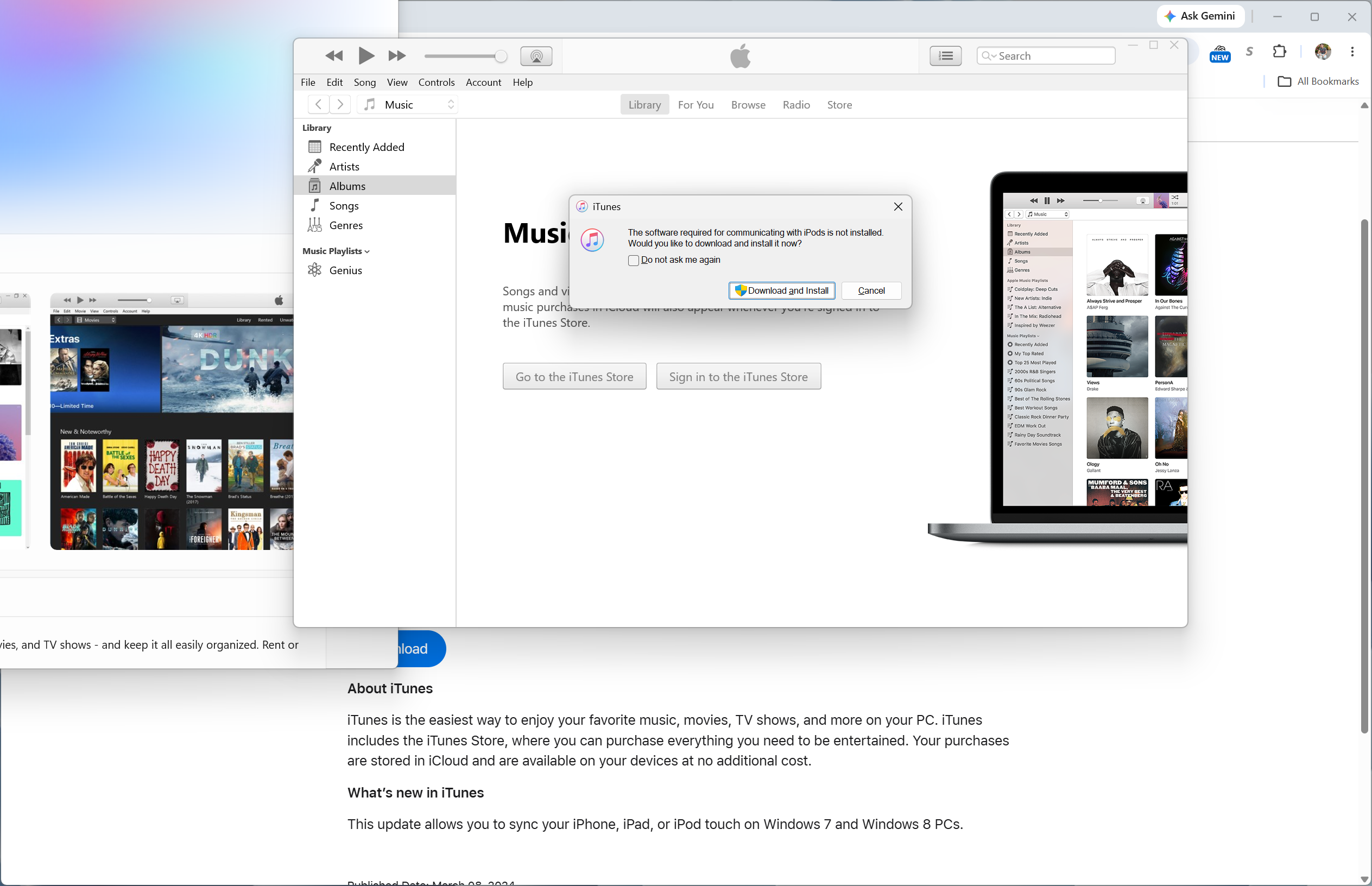
- If iTunes offers to download software for communicating with iPods, choose Download and Install. Approve the administrator prompt and let it finish. Leave "Do not ask me again" unchecked.
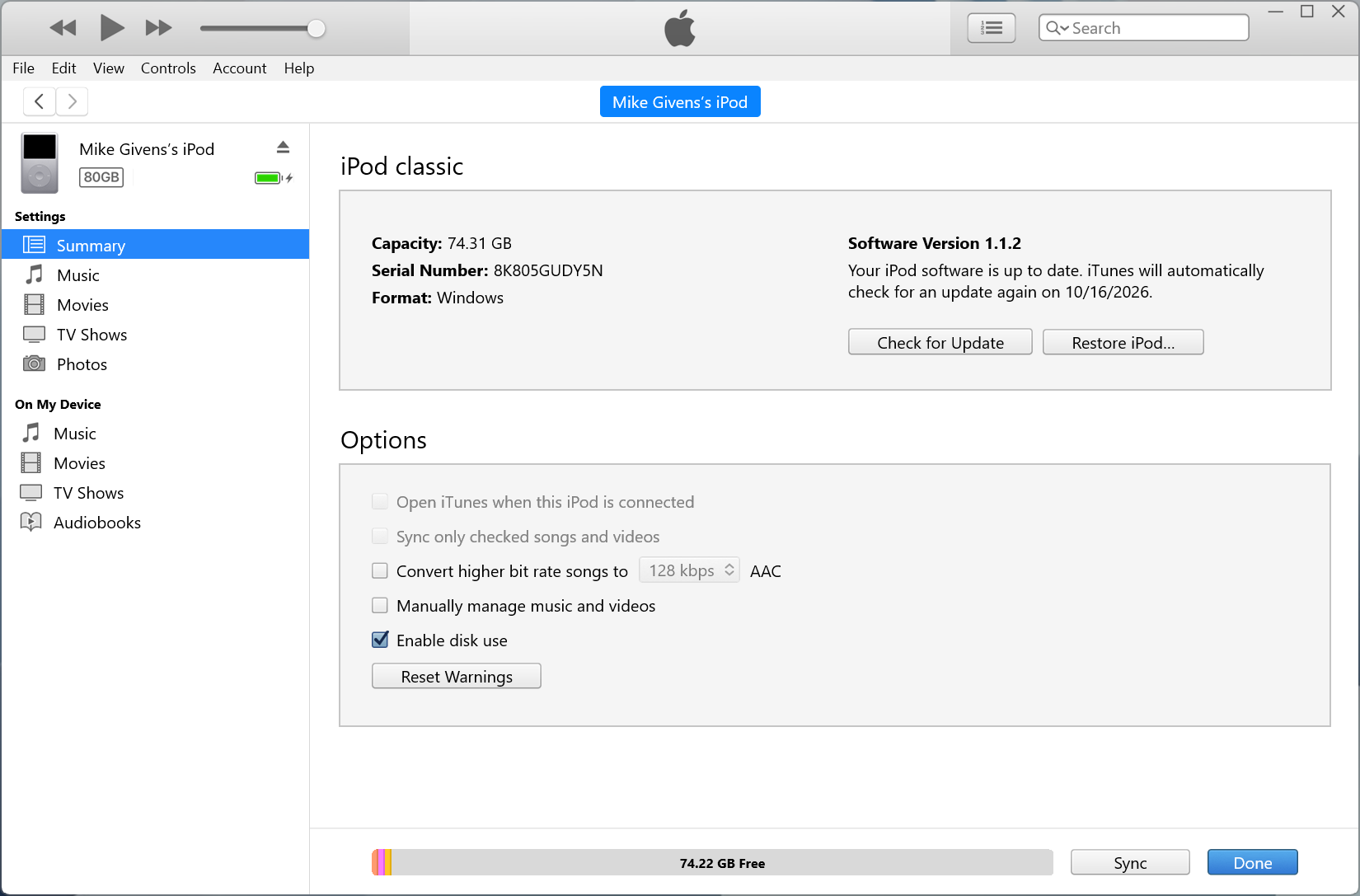
- Look for the iPod button near the upper left of iTunes and select it to open the Summary screen. If it doesn't appear, close and reopen iTunes and reconnect the iPod.
2. If iTunes says the iPod isn't supported, run diagnostics
- Leave the iPod connected and dismiss the error.
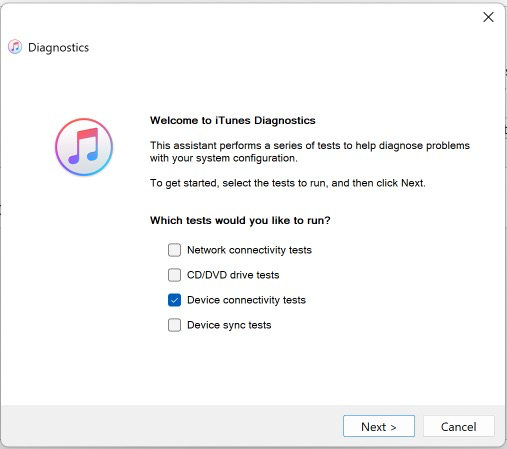
- In iTunes, choose Help > Run Diagnostics.
- Select Device connectivity tests, clear the unrelated tests, and continue.
- Read the results for the iPod support service. The report calls it "iPod Service." Apple Mobile Device is a separate service used by other Apple devices, so ignore that line. Save or copy the report if you need to ask for help.
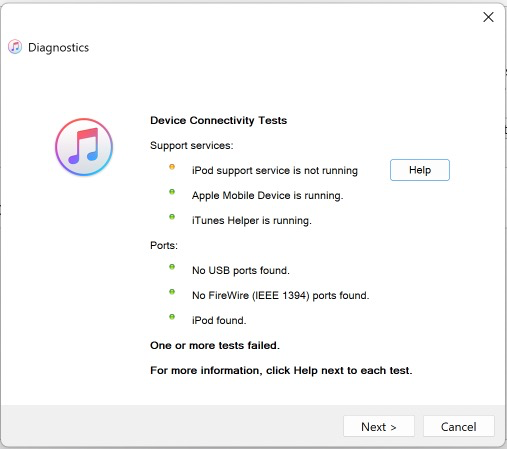
If the test says “iPod support service is not running,” restart Windows and run the test again.
If it says "iPod support service is not installed"
Reconnect the iPod. If the download prompt appears, choose Download and Install.
If the prompt never appears, Apple hosts a separate 64-bit iPod Support installer for Intel and AMD PCs. You can check your system type under Settings > System > About.
- Close iTunes and safely eject the iPod if Windows mounted it as a drive.
- Download Apple's 64-bit iPod Support installer. In the file's Properties, open Digital Signatures and confirm a valid signature from Apple.
- Run the installer and approve the administrator prompt. If Windows blocks it, note the exact message.
- Open iTunes, reconnect the iPod, and rerun the connectivity test. Restart Windows if asked, or if the service still isn't available.
If it says the service is already running
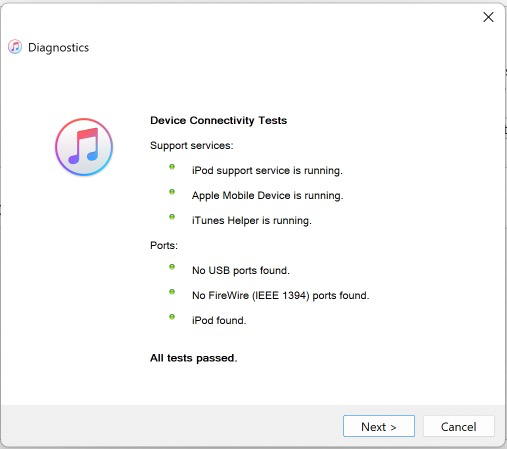
If iTunes still gives an error or the iPod does not appear, skip ahead to If the iPod still doesn't work. Check whether the iPod appears in File Explorer and note the exact iTunes error.
3. Add your music and sync
If your iPod opens normally in iTunes, you can go straight to adding music. There's no need to restore a working iPod just to sync.
If iTunes only shows podcasts and audiobooks, you may have Apple Music or Apple TV installed. Those apps change where the PC's music and video libraries are managed, so back up your library before changing anything. Apple's own syncing guide still directs Classic owners to iTunes.
- Use File > Add File to Library or Add Folder to Library to import music from the PC. You can also import CDs through iTunes.
- Play a few songs in iTunes to confirm the files are there. An entry pointing to a missing file can't be transferred.
- Select the iPod button, then Music under Settings.
- Turn on Sync Music. Choose the entire library if it fits, or select playlists, artists, albums, and genres.
- Click Apply or Sync, and read any library-replacement warning before continuing.
- When syncing finishes, click the eject button beside the iPod, then disconnect. Play a few tracks on the iPod to confirm.
For a first test, a small playlist is easier to check than a whole library. Music downloaded through an Apple Music subscription can't be transferred to an iPod Classic. Use files you own, such as imported CDs or purchased downloads.
4. Restore your iPod Classic
A restore reinstalls the iPod software and prepares the storage from scratch. It makes sense after replacing storage, when the iPod asks for one, or when you want a clean start. It won't fix missing iPod Support.
A restore erases everything on the iPod, so make sure you have your files elsewhere. Back up your iTunes library separately.
- Connect the iPod, open iTunes, select the iPod button, and go to Summary.
- Click Restore iPod and read the confirmation. Continue only if you want it erased.
- iTunes will download and install the software. Keep the PC awake and online, and leave the iPod connected until it's done.
- The iPod will restart. It's normal for it to disappear from iTunes for a moment.
- When the setup screen appears, name the iPod and choose your sync settings. Sync a small playlist, eject, and check playback.
If a restore fails, write down the exact error number and where it stopped: download, preparation, installation, or restart. Those are different problems. Also keep in mind that a restore can fail on dying storage even when the connection is fine.
If the iPod still doesn't work
Windows sees the iPod, but iTunes doesn't.
Run the connectivity test and check iPod Service. If it's running, restart Windows and reconnect. If Windows offers to format the drive, decline, since formatting erases it.
Windows doesn't recognize it either.
Try another 30-pin data cable and a direct USB port. If Device Manager shows "Unknown USB Device" or "Device Descriptor Request Failed," try the iPod on a second computer with a known-good cable to narrow down the fault.
The iPod won't start normally.
Turn Hold on and off, then hold Menu and Center until the Apple logo appears. Immediately hold Center and Play/Pause until Disk Mode appears, then reconnect to the computer. Disk Mode can help a troubled iPod connect, but it won't install missing software or repair damaged storage.
Restores keep failing, or the iPod freezes or skips.
Note the error and where it stopped. With an original hard drive, check its SMART data and listen for repeated clicking. With an SSD or microSD conversion, check the card, the adapter, and the internal connections.
Thinking about an older version of iTunes?
Save the connectivity report and back up your library first, because an older release may not open a library updated by a newer one. If the report says iPod Support is missing, install that first.
Get help with a restore or sync problem
Send MRG Studio the iPod model, your Windows and iTunes versions, the exact error message, and the connectivity report. Tell us whether Windows sees a drive, and whether the problem happens during recognition, restore, or sync. Remove personal information from reports before posting them publicly.
Sources and testing
I've tested recognition, restoring, and syncing on many Windows PCs at MRG Studio, including Windows 10 and 11 with the Microsoft Store version of iTunes and its automatic iPod Support download. I found no difference between Windows versions.
Apple's iTunes syncing guide directs Classic, nano, and shuffle owners to iTunes on Windows 10 or later.
https://support.apple.com/en-au/guide/itunes/itnsa874d59/windows
Apple's Windows software download page
https://support.apple.com/en-us/118290
Apple's standalone 64-bit iTunes installer
https://www.apple.com/itunes/download/win64
Apple's 64-bit iPod Support installer
Geoff Chappell's investigation of iPod Support Service and the separate installation package
https://www.geoffchappell.com/notes/isv/apple/itunes/ipodsupport.htm